Introduction
The MPPW provides a mechanism for fetching and executing scripts, which are digital documents written in scripting languages like Python. These scripts are designed to analyze and manipulate data within the MPPW.
Jupyter Notebooks are a powerful tool for data analysis, allowing users to script, explore, and visualize data interactively while documenting their results. Composed of cells containing code, rich text, and visuals, Jupyter Notebooks allow for flexible programming language selection and customizable notebook formats. Each cell is executed individually on a kernel, providing a dynamic and interactive environment for data exploration and analysis.
JupyterHub is a multi-user server application that provides a centralized platform for executing, storing, and sharing Jupyter Notebooks. It manages a separate Jupyter environment for each user, offering a scalable and secure platform for data analysis.
Analysis Server
An analysis server is an endpoint with the capability to store and execute scripts written in languages commonly used for data analysis, such as Python. It is expected that the analysis server contains the mppw_clients library, or similar, for interfacing with the MPPW API.
Recommended Analysis Server
JupyterHub is the recommended endpoint due to its robust features for managing dependencies and version control. However, other endpoints can be configured as needed.
Analysis Module
An analysis module is defined as a code module stored on the analysis server that contains scripts, functions, and/or data structures to perform a specific set of related analytical tasks. It is expected that the analysis module be maintained with a source code management platform, such as Gitlab.
It is expected that analysis modules contain a 'notebooks' folder containing analysis notebooks*
Scopes
Analysis modules are scoped to Projects and Users. Project scoped modules provide a reusable script repository for executing data analysis, processing, and reporting tasks. User scoped modules provide a sandbox for data exploration and analysis.
Registering a Module with JupyterHub
The module registration form allows you to register your analysis module with the MPPW for either Project or User Scope.
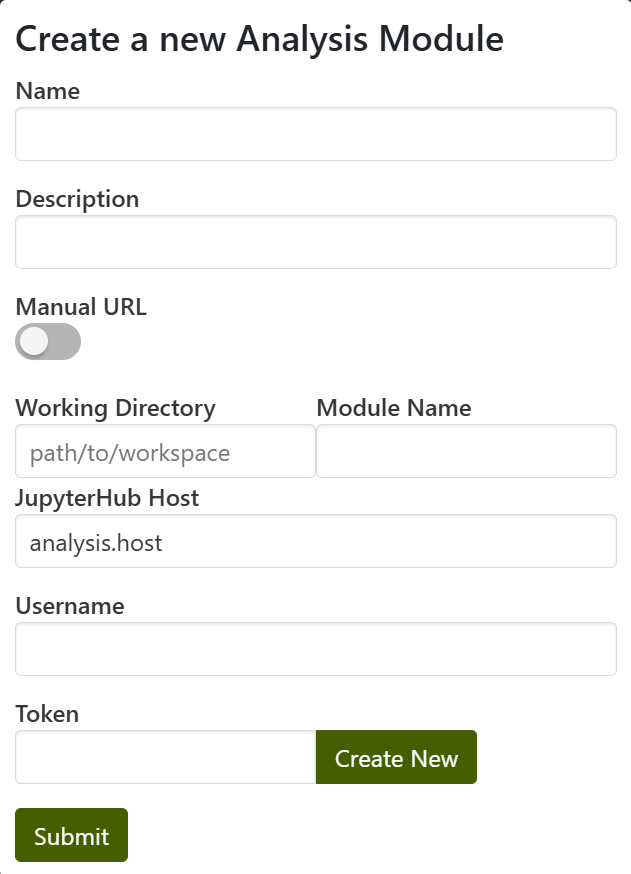
Required Fields:
- Working Directory: This is the relative path from the user's home directory to the directory containing the module (the module's parent directory). Optionally, you can also specify the relative path directly to the module directory.
- JupyterHub Host: The hostname of the analysis server. This typically follows a convention like
analysis.institution.edu. - Username: Your username for JupyterHub.
- Token: A unique 32-character access token generated by JupyterHub.
Optional Fields:
- Name: (Optional) A unique identifier for your analysis module within the system. This can be different from the actual module name on the analysis server. It allows you to differentiate between modules with the same name.
- Description: (Optional) Any text comment you want to add about your analysis module.
- Module Name: (Optional, conditional) Only required if the Working Directory points to the module's parent directory. This specifies the name of the directory containing the module itself.
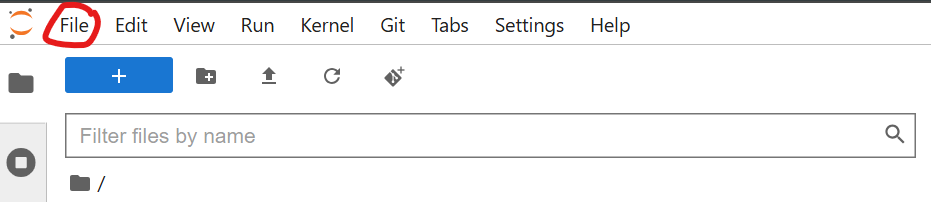
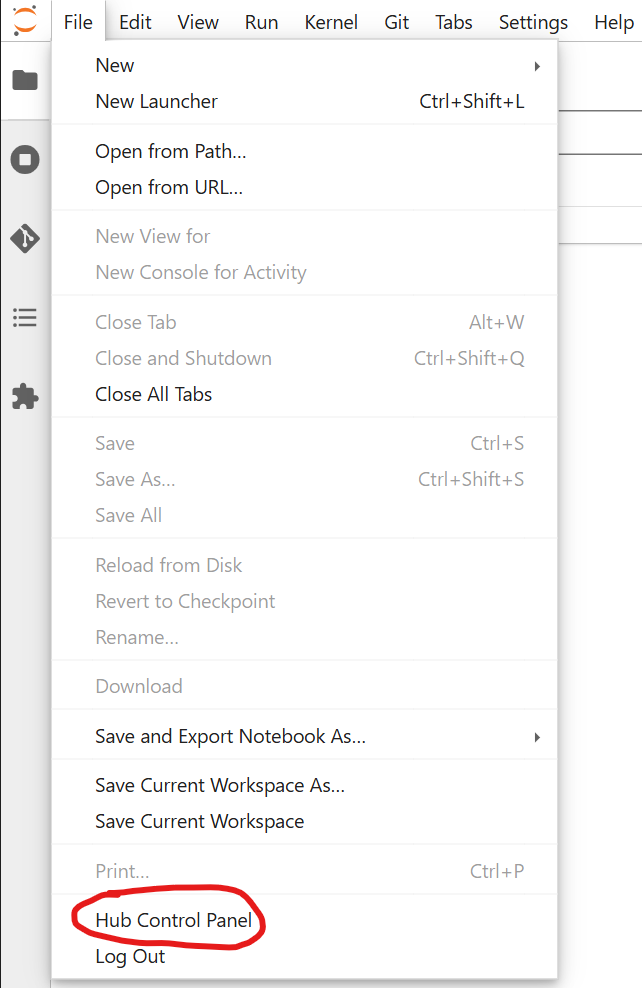
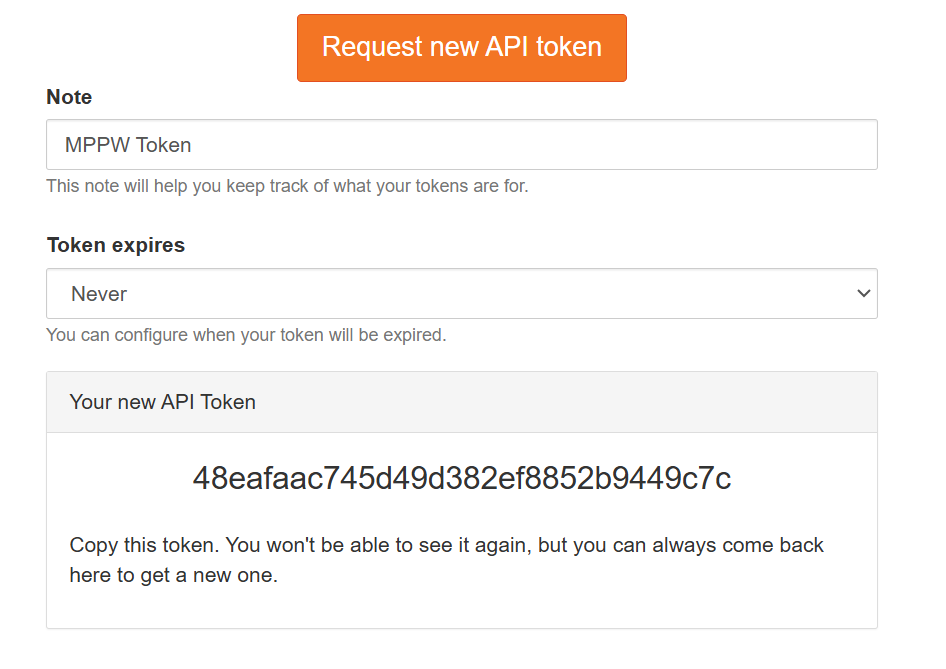
Manually Generating a JupyterHub Token
Copy the 32 character token generated and paste in the MPPW Module registration form from the previous section.

Registering a Module Manually
An analysis module can be manually registered by providing a formatted url with the following components:
protocol://username:token@hostname/path/to/api?workspace_directory=path&module_name=name
JupyterHub Example
A JupyterHub URL with the following components: * Hostname: analysis.university.edu * Username:: admin * Token:: 48eafaac745d49d382ef8852b9449c7c. Generated in previous section * Workspace Directory: laam_analysis
would be formatted like so:
https+jupyter://admin:48eafaac745d49d382ef8852b9449c7c@analysis.university.edu/jupyter/user/admin/api?workspace_directory=laam_analysis
Analysis Notebook
An analysis notebook is defined as a digital document stored on the analysis server that contained code, text, and data visuals in a cell-based format. Analysis notebooks were expected to be stored within analysis modules.
Papermill is used to execute analysis notebooks and allow for parameterization of inputs. A WebSocket connection to an analysis server session scoped IPython kernel is used to execute source code to run the notebook and package the outputs for the web UI.
Scopes
The MPPW uses notebook parameters or metadata to define scopes.
- Project: Default scope for a notebook. Allows notebook to be executed against a project's dataset.
- Operation: Allows notebook to be executed against a specific operation's dataset.
- Artifact: Allows notebook to be executed against a specific artifact's dataset.
Connecting mppw_clients to the MPPW
It is recommended to use the mppw_clients package to connect to the MPPW from JupyterHub. At a minimum, the url to the MPPW API needs to be passed to the Jupyter Notebook as a parameter. We reccommend a MPPW_URL parameter.
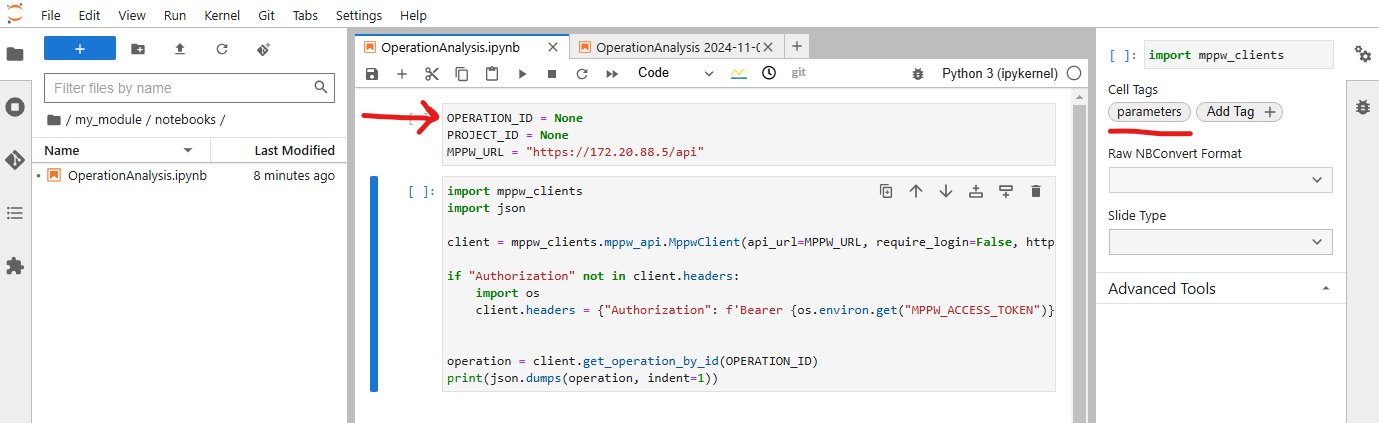
The MPPW will automatically create a temporary access token as an environment variable MPPW_ACCESS_TOKEN on the IPython kernel used to execute the notebook. This access token will be automatically detected by mppw_clients, but it can also be manually applied to mppw_clients.mppw_api.MppwClient. The following is a reccommended notebook cell code sample:
import mppw_clients

client = mppw_clients.mppw_api.MppwClient(api_url=MPPW_URL, require_login=False, https_verify=False)

if "Authorization" not in client.headers:
    import os
    client.headers = {"Authorization": f'Bearer {os.environ.get("MPPW_ACCESS_TOKEN")}'}
Scoping a Notebook to an Operation
The MPPW will automatically scope a Jupyter Notebook to 'Operation' if an OPERATION_ID parameter is present in the notebook. The following image illustrates how to add a parameters tag to a notebook containing OPERATION_ID and PROJECT_ID parameters for a Jupyter Notebook.
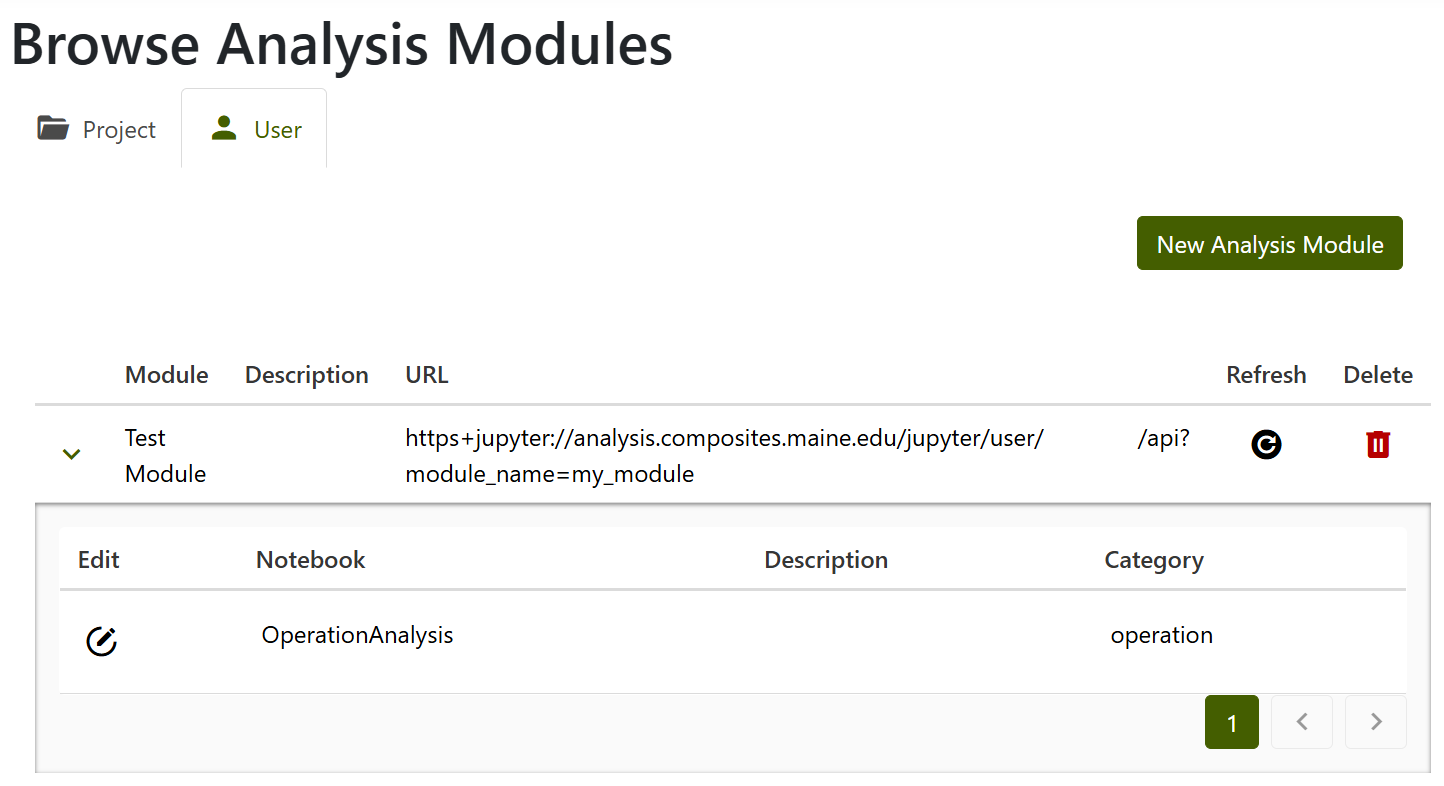
Additinally, notebook scopes can be browsed in the User Browse Analysis Modules page:
Notebook Execution
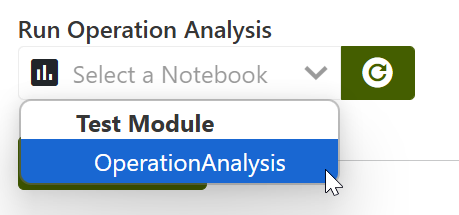
Project scoped notebooks are available in the Browse Operations page, while operation and artifact scoped notebooks are available in a specific Operation page. A dropdown menu will display the available notebooks categorized by their parent module.
Parameterized notebooks will open a modal where you can enter values for the parameters. The json python module is used for automatic type handling. The text entry boxes in the notebook parameters modal are not typed. Enter parameters in a JSON parsable format:
* Array: [1, 2, 3]
* Object: {"key": "value"}
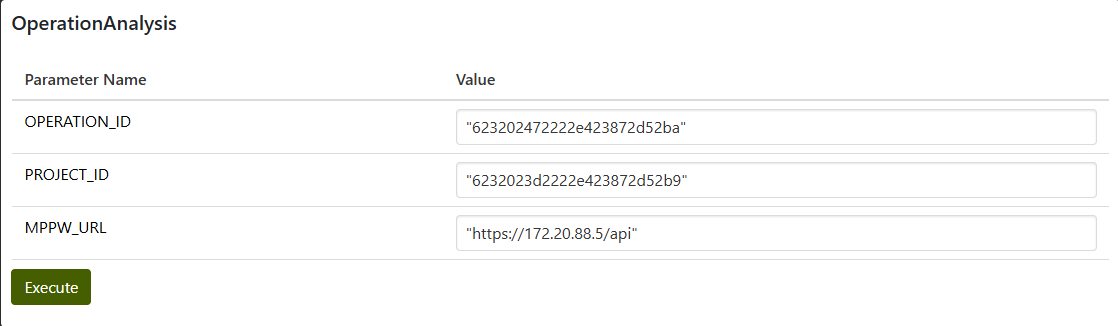
The papermill module is used to inject user defined parameter values to the notebook and run the notebook cell by cell on JupyterHub. The resulting notebook is stored in the temp folder with format temp/module_name/notebooks/notebook_name YYYY-MM-DD HH-MM.ipynb.
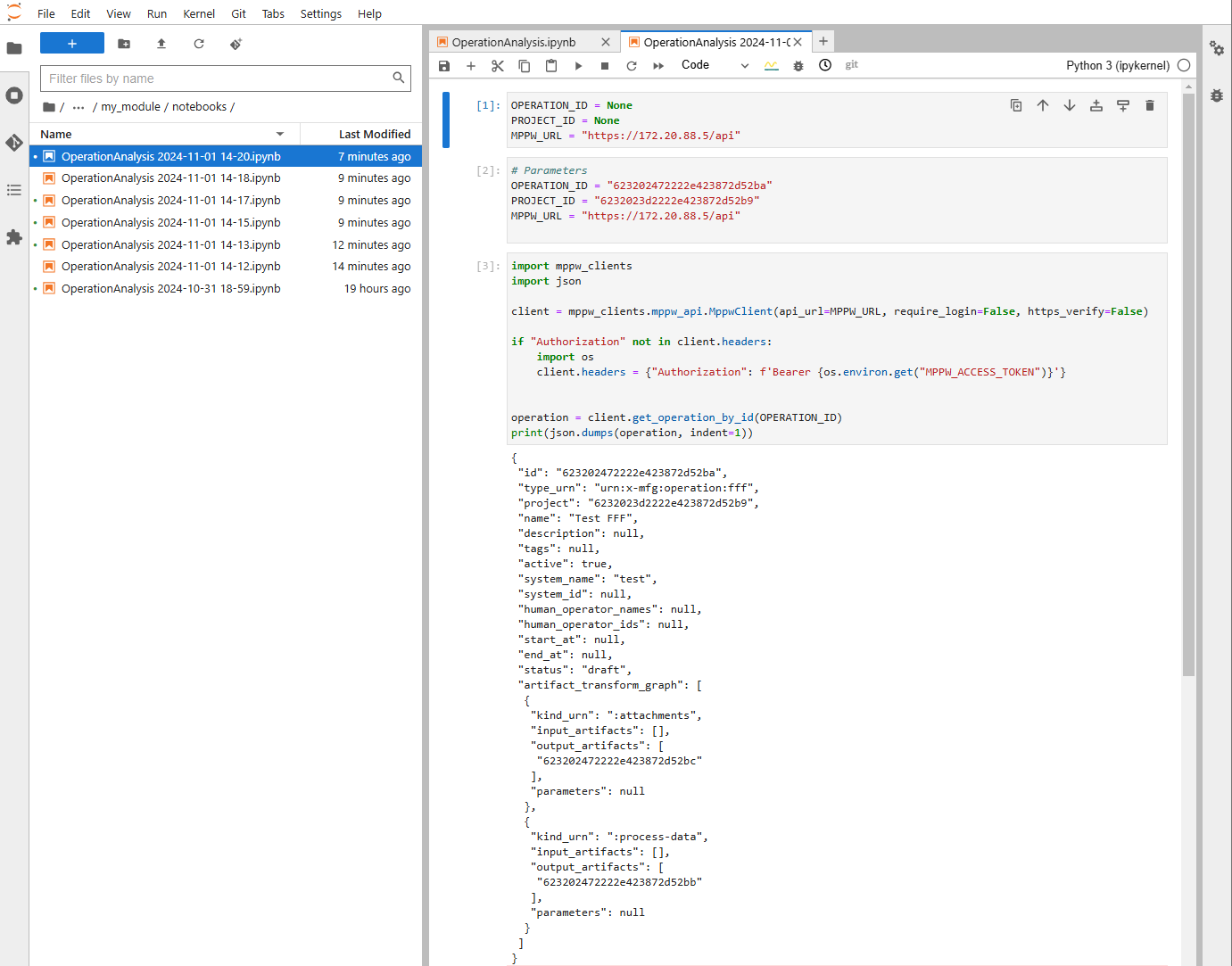
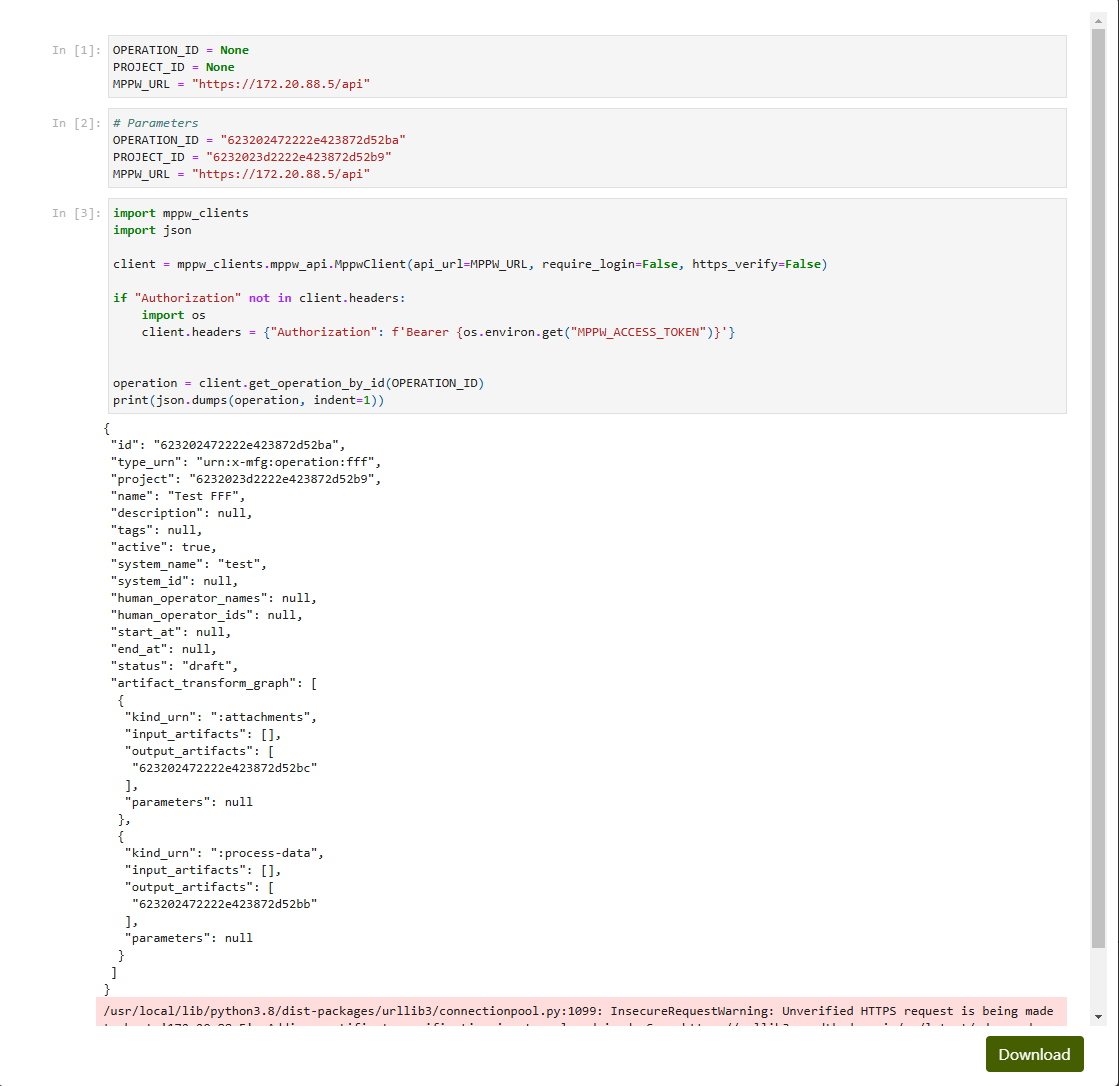
Finally, an html document is sent back to the MPPW and displayed in a modal. This document can be downloaded locally to serve as a report.
Additional Resources
- Jupyter Notebook Introduction: https://realpython.com/jupyter-notebook-introduction/
- Jupyter Notebook Documentation: https://jupyter-notebook.readthedocs.io/en/stable/notebook.html
- JupyterHub Documentation: https://jupyterhub.readthedocs.io/en/stable/
- Papermill Notebook Parameterization: https://papermill.readthedocs.io/en/latest/usage-parameterize.html
- Papermill Documentation: https://papermill.readthedocs.io/en/latest/index.html